
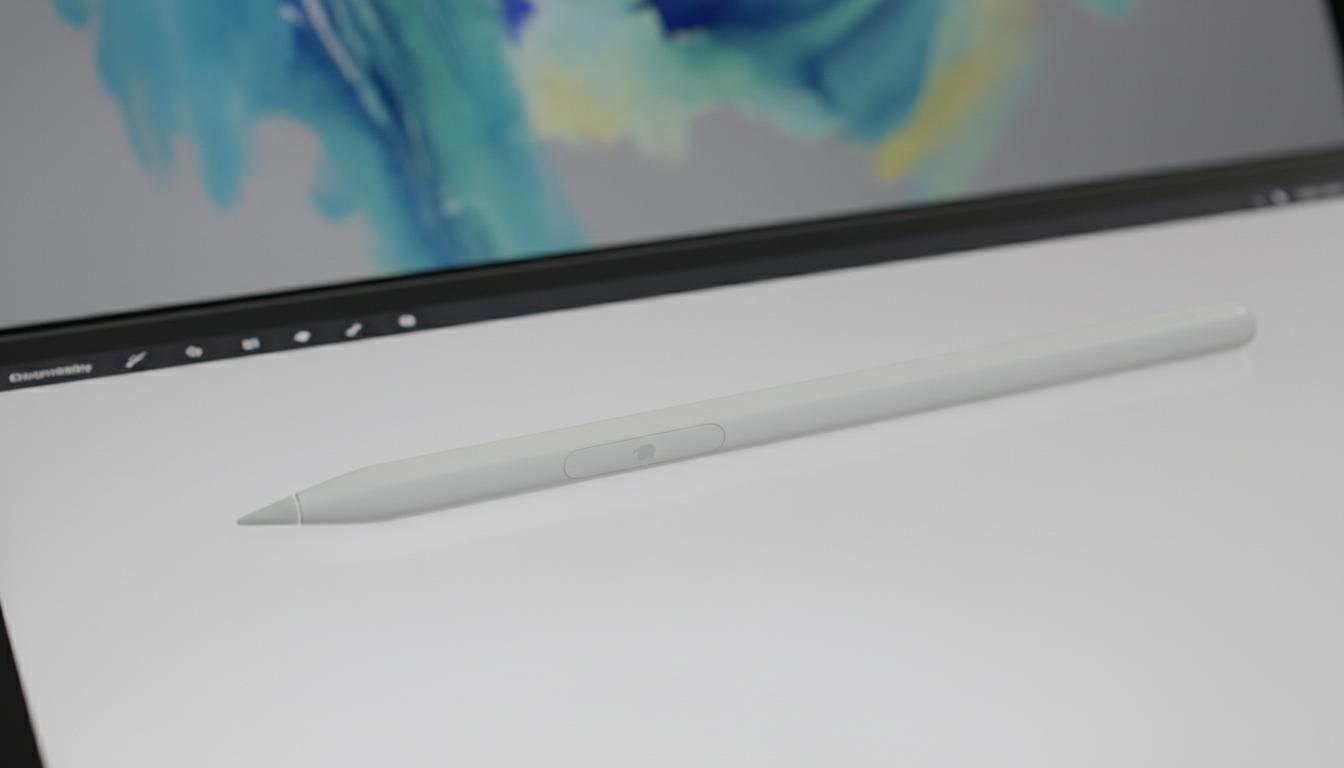
The Apple Pencil turns an iPad into a sketchbook, a notebook, and a precision tool for work. Whether you’re jotting lecture notes in Wellington, marking up building plans on site, or illustrating from your studio in Christchurch, the right Apple Pencil can change how you use your iPad. This guide explains what the Apple Pencil is, how it works, which model suits which iPad, and how to choose wisely in New Zealand.
What is
The Apple Pencil is Apple’s pressure‑sensitive digital pen for the iPad. It lets you write, draw, annotate, and navigate with far greater accuracy than a finger. The latest range includes several models with different features and compatibility. All are designed to feel natural, with low latency and palm rejection so your hand can rest on the screen while you work.
In short: an Apple Pencil is the iPad’s precision input device. It makes handwriting readable, drawing fluid, and document markup fast and tidy.
How it works
The Apple Pencil communicates with the iPad’s display at a high sampling rate. The iPad and pencil coordinate position, angle, and (on some models) pressure. Together they create strokes that look like real ink or graphite, but with digital flexibility.
- Low latency: The line appears almost instantly as you move, making it feel like real pen on paper.
- Palm rejection: Rest your hand on the screen; only the pencil input is captured.
- Tilt support: Tilt the tip to shade or widen strokes, like a traditional pencil.
- Pressure sensitivity: On supported models, press harder for thicker, darker lines.
- Hover (supported setups): On compatible iPads, the pointer previews the stroke before it touches the screen—handy for precise placement.
- Magnetic attach and charging: On certain models, the Apple Pencil snaps to the iPad’s side to pair and charge wirelessly.
iPadOS adds smart software features as well:
- Scribble: Handwrite in any text field; iPadOS converts it to typed text.
- Markup: Sign PDFs, annotate screenshots, and add notes to documents quickly.
- Quick Note and Freeform: Capture thoughts on the fly or brainstorm with flexible canvases.
- App support: From Notability and GoodNotes to Procreate, Shapr3D, Concepts, Affinity, and Microsoft OneNote—most major apps support Apple Pencil tools.
Types / examples
There are four current Apple Pencil models you’ll see in New Zealand. They differ in features, charging, and iPad compatibility.
| Model | Key features | Pressure sensitivity | Hover | Gestures | Charging / Pairing | Magnetic attach | General compatibility | Best for |
|---|---|---|---|---|---|---|---|---|
| Apple Pencil Pro | Pro-grade precision, squeeze gesture, barrel roll, haptic feedback | Yes | Yes (on supported iPads) | Squeeze, barrel roll | Magnetic, pairs/charges on iPad | Yes | Designed for 2024 iPad Pro (M4) and 2024 iPad Air (M2) | Designers, illustrators, advanced note-takers on latest iPads |
| Apple Pencil (2nd generation) | Pressure, tilt, double‑tap to switch tools | Yes | Yes on compatible iPad Pro models | Double‑tap | Magnetic, pairs/charges on iPad | Yes | Works with many magnetic‑charging iPads released 2018–2023 (e.g., iPad Pro 11‑inch, 12.9‑inch 3rd–6th gen, iPad Air 4th–5th gen, iPad mini 6) | Students, professionals, artists on pre‑2024 compatible iPads |
| Apple Pencil (USB‑C) | Low latency, tilt support, budget‑friendly | No | Yes on compatible iPad Pro models | None | USB‑C cable (slide cap), pairs via cable | Attaches for storage only | Works with most USB‑C iPads (including iPad 10th gen, recent iPad Air, mini, and iPad Pro models) | Everyday note‑taking, marking up docs, casual sketching |
| Apple Pencil (1st generation) | Pressure, tilt, Lightning connector | Yes | No | None | Lightning (or adapter with iPad 10th gen) | No | Older Lightning iPads; iPad 10th gen with USB‑C to Apple Pencil Adapter | Owners of compatible older iPads |
Notes on compatibility
Compatibility depends on your exact iPad model and year. As a rule of thumb:
- Apple Pencil Pro pairs with the 2024 iPad Pro (M4) and 2024 iPad Air (M2).
- Apple Pencil (2nd generation) works with many 2018–2023 iPad Pro models, iPad Air (4th–5th gen), and iPad mini (6th gen).
- Apple Pencil (USB‑C) works with iPads that have a USB‑C port.
- Apple Pencil (1st generation) works with older Lightning iPads and can work with iPad 10th gen using the Apple Pencil adapter.
Always check Apple New Zealand’s current compatibility page before buying—especially if you own a newer iPad or are choosing between models.
Pros and cons
Pros
- Natural writing and drawing with minimal lag.
- Accurate selection and editing in creative and productivity apps.
- Palm rejection and tilt support feel close to real tools.
- iPadOS features like Scribble and Markup streamline everyday tasks.
- Seamless magnetic charging and pairing on supported models.
Cons
- Different models and compatibility can be confusing at first.
- Costs more than many third‑party styluses.
- Tips wear over time; replacements are an extra purchase.
- Some features (like hover or Pro gestures) require specific iPad hardware.
- Easy to misplace if you don’t store it magnetically or in a case.
How to use or choose
How to choose the right Apple Pencil in NZ
- Match to your iPad first. Identify your exact iPad model in Settings > General > About, then confirm compatibility on Apple’s NZ site.
- Decide on features:
- Need pressure sensitivity for art? Choose Apple Pencil Pro or Apple Pencil (2nd generation).
- Happy with tilt only for notes and markup? Apple Pencil (USB‑C) keeps costs down.
- Using an older Lightning iPad? Apple Pencil (1st generation) may be your option.
- Think workflow:
- Magnetic charging and double‑tap/squeeze save time if you draw or write daily.
- Hover helps with precision in design apps on compatible iPads.
- Budget wisely: Factor in a spare tip set and a protective case or sleeve if you travel.
- Where to buy in NZ: Apple Online Store (including education pricing), Apple Authorised Resellers such as Noel Leeming, PB Tech, and JB Hi‑Fi. Prices include GST; stock can vary by colour and model.
- Warranty and rights: Apple offers a limited warranty, and the NZ Consumer Guarantees Act provides additional protections.
Step‑by‑step: Pair and start writing
- Charge your iPad to at least 50% and install the latest iPadOS updates.
- Unbox the Apple Pencil and check the tip is firmly screwed on.
- Pair based on your model:
- Apple Pencil Pro / 2nd generation: Attach it to the magnetic side of your iPad. A prompt appears; tap Pair.
- Apple Pencil (USB‑C): Slide the cap, connect a USB‑C cable to the iPad, and follow the on‑screen pairing steps. It can attach magnetically for storage only.
- Apple Pencil (1st generation): Plug into the iPad’s Lightning port (or use the official adapter with iPad 10th gen), then tap Pair.
- Open Notes and test strokes. Try light and heavy pressure (if supported) and tilt for shading.
- Customise gestures:
- 2nd generation: Settings > Apple Pencil > Double‑Tap.
- Pro: Settings > Apple Pencil to set squeeze actions and other options.
- Enable Scribble: Settings > Apple Pencil > Scribble, then write in a search bar or text field to try it.
Care, tips, and troubleshooting
- Replace the tip when lines look uneven, feel scratchy, or require extra pressure. Keep a spare set in your bag.
- Use a good case or sleeve; on the move, a snapped tip or a lost pencil is a common frustration.
- For matte screen protectors, expect faster tip wear; keep a spare.
- If pairing fails, restart the iPad, toggle Bluetooth off/on, and reseat the pencil. For USB‑C models, try a different cable.
- If the Apple Pencil won’t charge magnetically, ensure it’s seated correctly and the iPad side is clean.
- Avoid extreme temperatures; batteries dislike hot cars and cold ski fields.
FAQ
Which iPads in New Zealand work with Apple Pencil?
It depends on the pencil model. Many recent iPads support Apple Pencil (USB‑C) or Apple Pencil (2nd generation), while the newest iPad Pro (M4) and iPad Air (M2) are designed for Apple Pencil Pro. Older Lightning iPads often use Apple Pencil (1st generation). Check your exact model on Apple NZ’s compatibility page before you buy.
Does the Apple Pencil work with iPhone or Mac?
No. The Apple Pencil is for supported iPad models only.
Is the Apple Pencil worth it if I only take notes?
For frequent note‑taking, yes. Handwriting is faster and tidier with palm rejection, and features like Scribble and Markup save time. If you don’t need pressure sensitivity, the Apple Pencil (USB‑C) is a good, lower‑cost pick.
What’s the difference between Apple Pencil Pro and Apple Pencil (2nd generation)?
Both offer low latency, tilt, and pressure sensitivity. Apple Pencil Pro adds pro‑level controls such as a squeeze gesture, barrel roll for brush rotation, and haptic feedback, and is designed for the latest iPad Pro (M4) and iPad Air (M2). The 2nd generation model supports double‑tap to switch tools and works with many 2018–2023 iPads.
Do I need hover?
Hover is great for precision—previewing strokes, aligning shapes, or choosing colours without touching down. Creatives benefit most, but it’s handy for anyone who values accuracy.
How long does the battery last?
Battery life is designed to handle many hours of continuous use. Magnetic‑charging models top up quickly when attached to the iPad, so most users rarely run flat. If you leave it unused for extended periods, give it a short charge before projects.
Can I use third‑party styluses instead?
Yes, some third‑party options exist, but they may lack pressure sensitivity, hover, gestures, or deep app integration. If you rely on precision and consistent performance, an official Apple Pencil usually delivers the best experience.
Where should I buy an Apple Pencil in NZ?
Buy directly from Apple (including education pricing) or from authorised retailers like Noel Leeming, PB Tech, and JB Hi‑Fi. Buying locally helps with returns, warranty, and your rights under the Consumer Guarantees Act.
What about tip replacements and accessories?
Apple sells replacement tips. Many NZ cases include a pencil slot to reduce loss. If you write or draw daily, keep spare tips on hand and consider a protective sleeve for rough commutes.
Any setup tips for classrooms and offices?
- Label pencils to avoid mix‑ups in shared environments.
- Standardise models across devices to simplify charging and support.
- Enable Scribble for quicker text entry during classes or meetings.
Key takeaways for New Zealand buyers
- Pick the Apple Pencil that matches your iPad and your workload.
- Apple Pencil Pro is the top choice for the latest iPads; 2nd generation is excellent for many earlier models; USB‑C is a solid budget choice; 1st generation serves older devices.
- Buy from NZ retailers you trust, keep spare tips, and lean on your CGA rights if products fail to perform as expected.